
Podcasts have information, stories, and views that deserve to be heard beyond their immediate sphere. Focussed short form videos can attract new audiences to long conversations. Pippit converts podcasts into stunning visuals, with a streamlined creation and editing process. Images, captions, and supporting visuals can all be used in conjunction with speaker footage in one workflow.
Why Podcast Content Is Perfect for Short-Form Video Repurposing
Podcasts have a lot of moments that could be focused social clips. Episodes can contain advice, opinions, stories, debates, and explanations. These moments can form an AI movie around a single great concept. Short videos are ideal for people who are looking for short information. Feeds and recommendations can be enhanced by visual presentation to aid discovery. Older episodes are repurposed to make them relevant. A variety of versions can help reach an episode through different publishing channels.
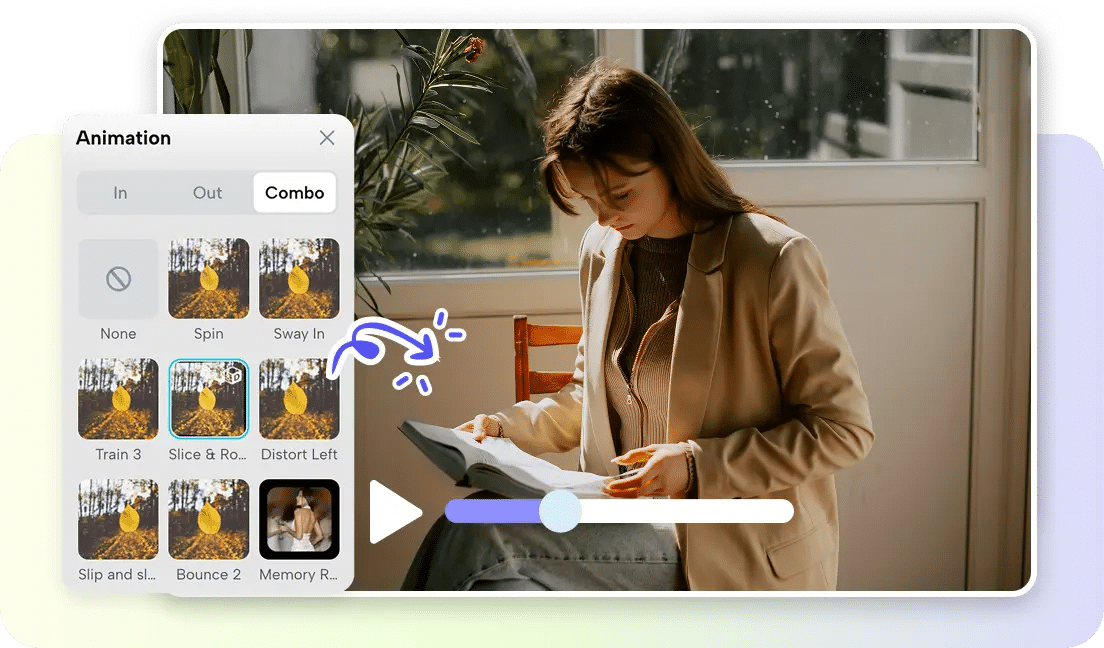
Identifying Podcast Moments That Have Viral Potential
Effective clips start with something that makes the audience want to watch, feel, or know. Seek out insights that provide actionable takeaways in short order. When speakers share unusual points of view, compelling opinions can elicit comments. Emotional stories can be successful because real-life experiences foster human connections. Emphasize pacing and natural speech. Don’t use too many pauses and fillers if these detract from the message. Produce each clip with one idea so that the audience can understand quickly. This also simplifies Pippit’s editing process.
Steps to Turn Podcast Episodes into Viral Clips with AI Movie Maker
Pippit provides a practical story studio workflow for creative directions and references. It has a video generator with scenes, styles, transitions, effects, and camera angles. Available models can be selected, and duration, language, subtitles, and aspect ratio can be defined. Reference images or videos can guide visual direction. Pippit’s editor allows you to edit drafts and perfect the details. The availability of models in Pippit’s interface may change from time to time.
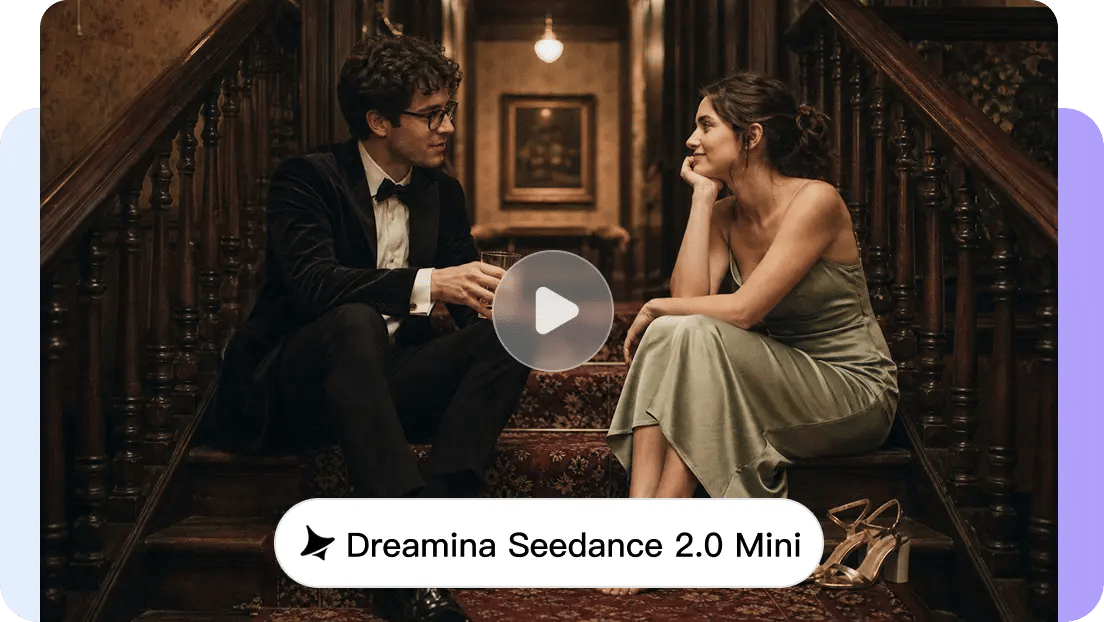
Step 1: Prepare podcast content for AI videos
-
Sign up for Pippit using your Google, TikTok, or Facebook account information.
-
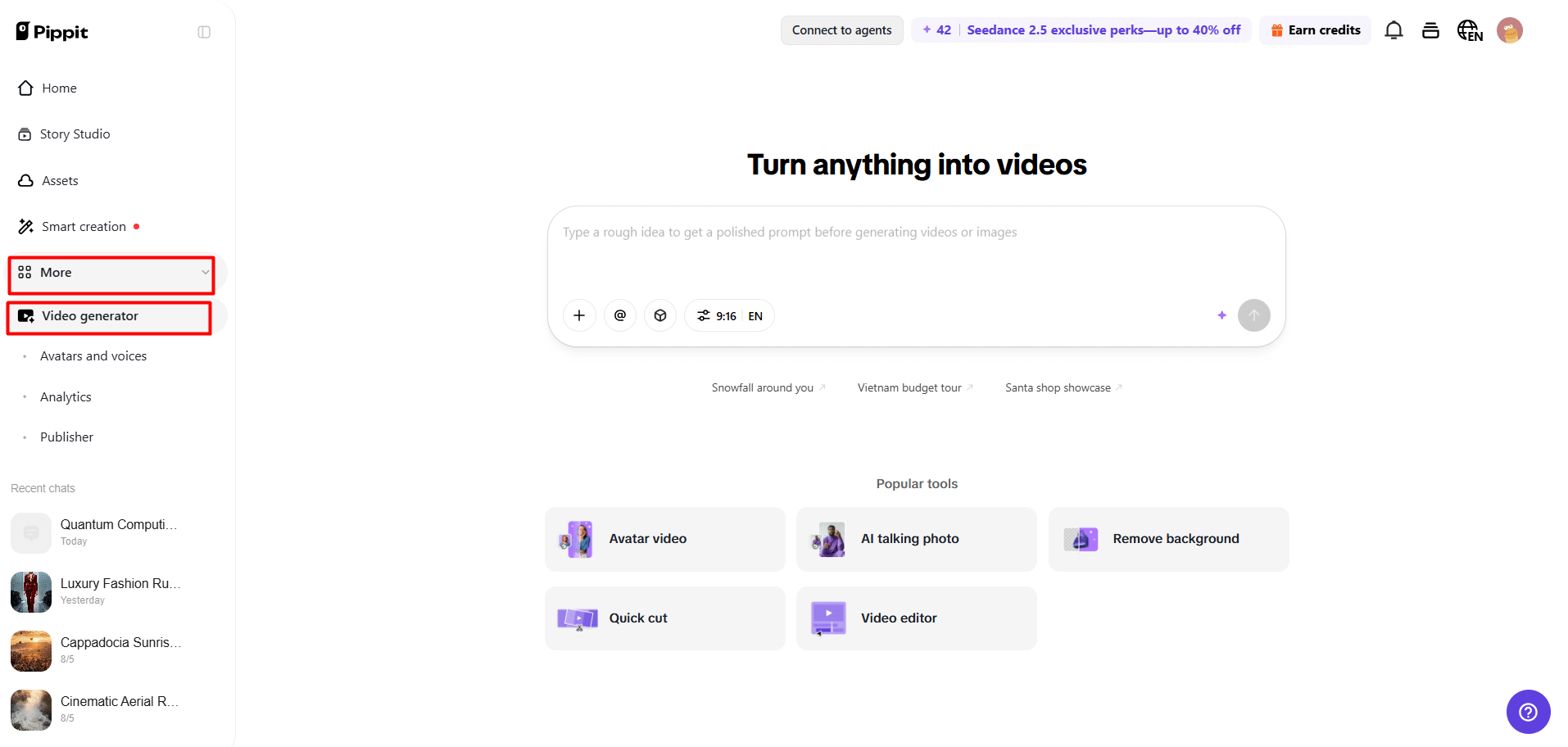
Navigate to the “More” tab and open “Video generator”.
-
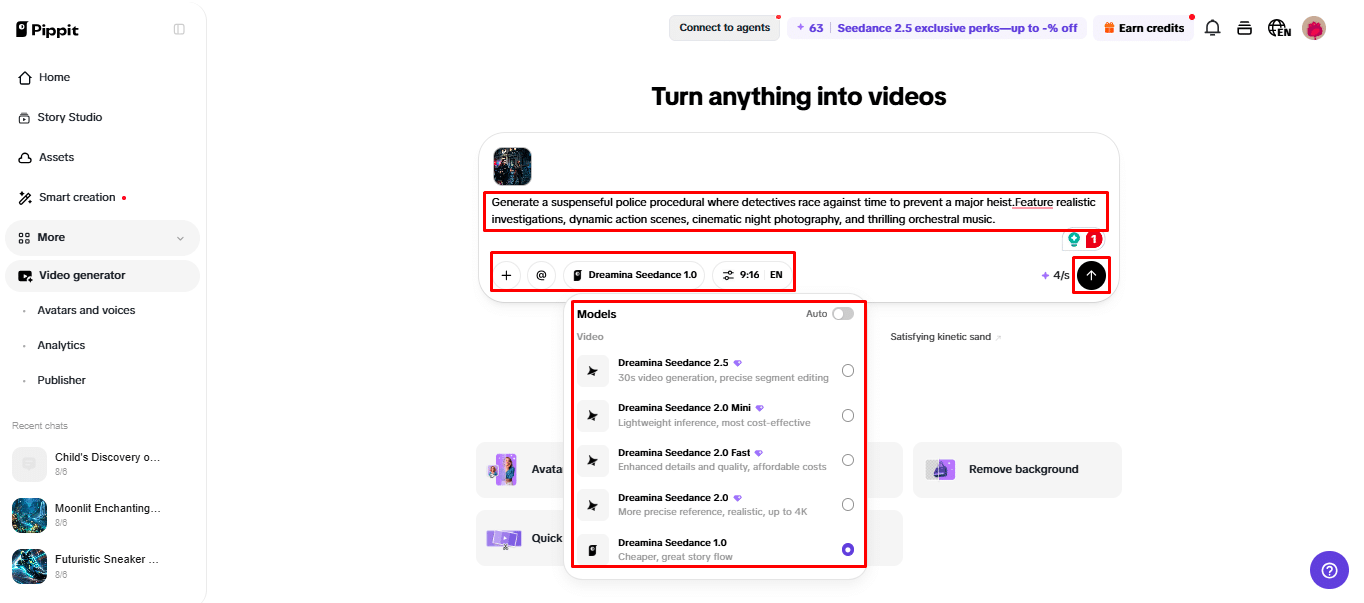
Select an AI model such as Dreamina Seedance 1.0, Dreamina Seedance 2.0, Dreamina Seedance 2.0 Fast, Dreamina Seedance 2.0 Mini, or Dreamina Seedance 2.5.
-
Enter a detailed prompt describing your podcast clip, speaker details, visuals, effects, and camera angles.
-
Choose video length, language, subtitles, and aspect ratio.
-
Click “+” to upload podcast images or videos from your device, phone, Dropbox, or a link, or select available assets.
-
Click “Generate” to create your clip.
Step 2: Generate viral podcast clips
-
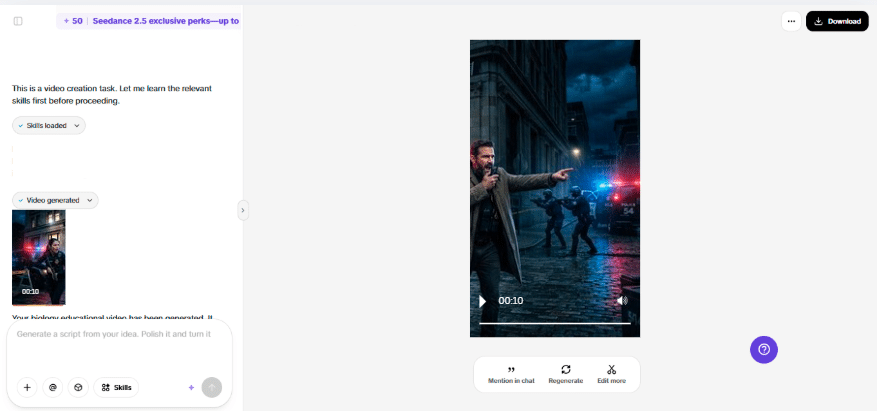
After clicking “Generate”, Pippit’s AI video generator creates a movie using your prompt and reference media.
-
The AI manages transitions, pacing, captions, avatars, voice, lyrics, and visual enhancements.
-
Review the movie draft and select the best clips for publishing.
Step 3: Edit and publish clips
-
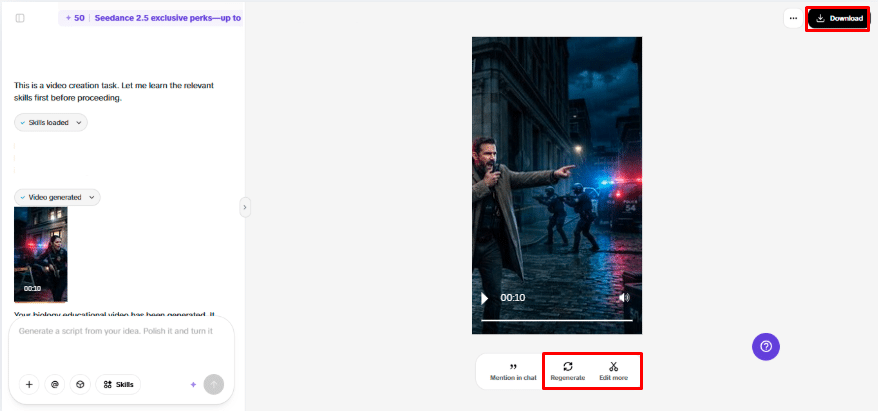
Click the “Download” tab to save your movie. Use “Regenerate” for another version or select “Edit more” for advanced edits.
-
Customize captions, add text, and adjust size, color, alignment, filters, and effects.
-
Add background music, remove backgrounds, and refine visuals.
-
Click “Export” when your clip is ready.
-
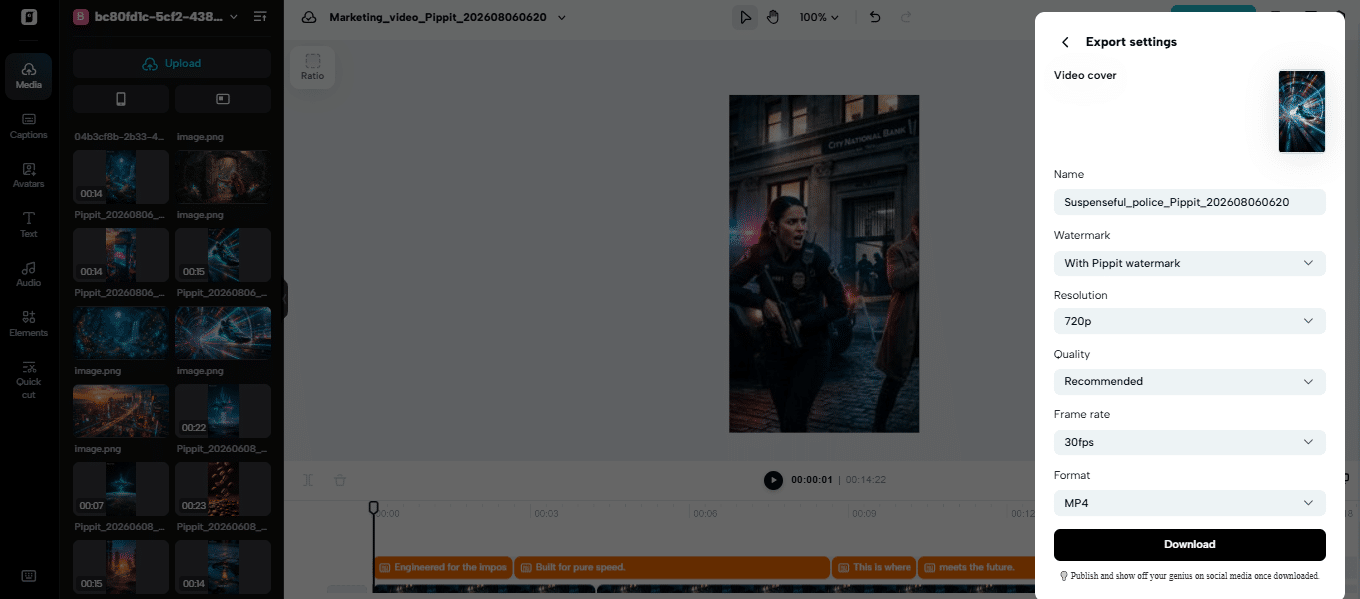
Select “Publish” to post on TikTok, Instagram, or Facebook, or click “Download” to save it with your preferred format, resolution, frame rate, and quality.
Pippit Features That Simplify Podcast-to-Video Production
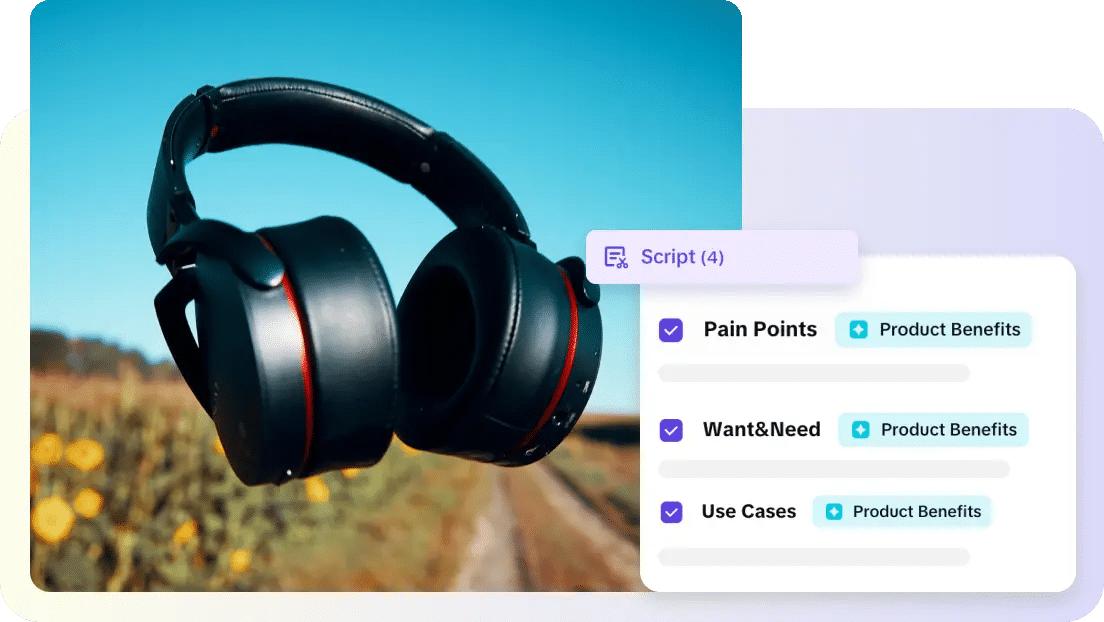
Pippit brings generation, editing, formatting, and publishing capabilities all together in one workflow. Useful capabilities include:
-
Automated video generation: Draft videos based on prompts and reference media.
-
Full editing capabilities: Edit captions, transitions, filters, effects, text, and layouts.
-
High-resolution exports: Select from a variety of options to suit various publishing needs.
-
Auto-crop: Crop for vertical, square, or landscape format.
-
Flexible Asset uploads: Speaker image, Podcast artwork, Clips, supporting media.
-
Direct publishing options: Download completed videos or publish to supported platforms.
-
Podcast clips: Use an ad maker to extend the podcast into a marketing piece.
Transforming Audio Conversations into Engaging Visual Stories
Podcasts are complemented by images that reflect and illustrate the speaker’s message. Use charts, screenshots, and/or appropriate context video clips in business discussions. Use speaker video clips to support emotional and/or explanatory parts of the speech. Captions make things more accessible, and they help the viewer follow along with the dialogue without audio. Limit unnecessary words to ensure captions are readable. Use speaking techniques to highlight key phrases without altering the meaning of what is said. Smooth pacing is a factor, as extended pauses can diminish short-form attention. Transitions should aid in moving from one topic to the next, rather than diverting the viewer’s attention. Statistics, quotes, questions, and conclusions can be given visual emphasis.
Optimizing Podcast Clips for Different Social Platforms
Different platforms have different preferred viewing environments and layouts. Vertical videos work well for mobile feeds with shorter content and provide more screen space. Landscape mode might be more suitable for larger screens and longer presentations. Square formats can be provided to accommodate certain feeds and social sites. Pippit’s cropping controls take care of footage before it is exported. Be consistent in the use of logos, names of speakers, captions, and colours throughout. When framing influences readability and positioning, make separate exports. Always check for clipping or hidden faces before posting on the web.
Best Practices for Creating Shareable AI-Generated Podcast Clips
Great podcast clips need good editorial decisions just like any great podcast. Capture attention with a sentence, question, reaction, or important moment. Do not provide too much introduction before getting to the point. Try to focus on one thing per clip; viewers should be able to understand this at a single glance. Keep on-screen text to a minimum and complement spoken information. Avoid voice-repetaition of sentences with overlays. Maintain consistency of original and generated elements in the mixing process. Review all the edits you make before posting. Verify with the recording names, quotes, captions, and context: human review, meaning, and credibility.
Expanding One Podcast Episode into Multiple Content Assets
When one recording can be used for multiple content assets (one use for each asset), it should be considered a single recording. Educational clips can isolate lessons, explanations, or expert guidance. Opinion clips may be centered on forceful arguments or on unique viewpoints. Teasers can give the new episodes a preview without giving away major details. Quotes that are memorable can then be displayed as a post with the source. Themed collections can be used to organise clips on a single theme. Pippit can create assets for various channels without compromising brand. This adds value to one recording and helps to publish regularly.
Conclusion
Podcast repurposing can be done quickly with AI-powered workflows, while still maintaining editorial control. Pippit is an all-in-one generation, editing, auto-cropping, customization, and export tool. Focused clips with supporting visuals and readable captions can be extracted from selected conversations. Mobile feeds, social pages and wider viewing environments can be served via different formats. Credibility cannot be achieved without careful selection and final review. One podcast can thus be turned into several finished product materials for digital distribution.